Multi-Factor Authentication for Remote Access
Multi-Factor Authentication for Remote Access
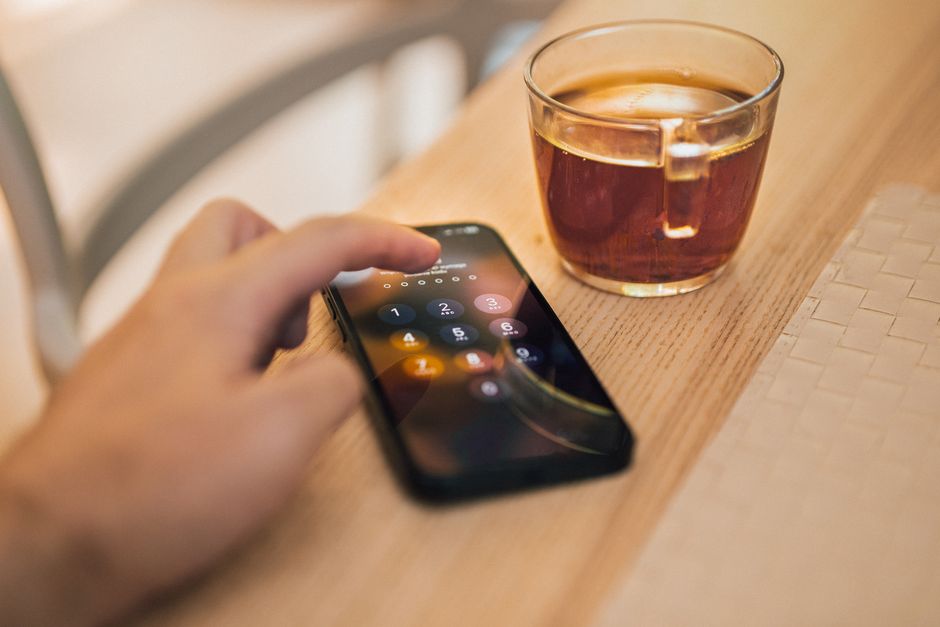
Photo by Jakub Zerdzicki on Pexels
Multi-Factor Authentication (MFA) is the single most effective security control you can implement for remote workers. According to Microsoft, MFA blocks over 99.2% of automated account compromise attacks. This lesson explains what MFA is, why it's essential for remote work, and how to set it up for free.
What Is MFA and Why Does It Matter?
MFA requires users to provide two or more pieces of evidence to prove their identity. A password alone (something you know) is not enough. MFA adds a second factor: something you have (like a phone) or something you are (like a fingerprint). Even if an attacker steals a password, they can't access the account without the second factor.
For remote workers, MFA is even more critical. Workers can't walk over to a colleague's desk to verify a request. Phishing attacks are harder to detect through email alone. Home networks are less secure. MFA provides the security layer that compensates for these remote work risks.
Types of Authentication Factors
- Something you know: Password, PIN, security question
- Something you have: Phone (app notification, SMS code), hardware key (YubiKey, Feitian)
- Something you are: Fingerprint, face scan (Windows Hello, Apple Face ID)
- Somewhere you are: IP address, GPS location (can be used as an additional check)
MFA Methods Ranked by Security
1. Hardware Security Keys (Most Secure)
Physical USB or NFC keys that the worker taps or inserts during login. The key generates a unique cryptographic response that can't be intercepted or phished. This is the gold standard for MFA.
- Cost: $25-50 per key (one-time purchase, no subscription)
- YubiKey: Most popular — works with Google, Microsoft, GitHub, and many others
- Feitian: Budget alternative — similar functionality at lower cost
- Setup: Register the key with each service in security settings. Workers tap the key when prompted during login.
2. Authenticator Apps (Best Free Option)
Apps that generate time-based one-time passcodes (TOTP) every 30 seconds. The worker opens the app, reads the 6-digit code, and enters it during login. No internet connection needed for code generation.
- Microsoft Authenticator: Free, works with both Microsoft and non-Microsoft accounts. Also supports push notifications for passwordless login.
- Google Authenticator: Free, simple, works with any service that supports TOTP
- Authy: Free, backs up codes to the cloud (encrypted), available on all platforms
- Aegis: Free, open-source Android app with encrypted backup — best for privacy-conscious users
3. Push Notifications (Convenient, Good Security)
Instead of entering a code, the worker receives a notification on their phone: "Approve login from Chrome on Windows?" They tap "Approve" or "Deny." Fast and user-friendly.
- Microsoft Authenticator push: Free with Microsoft 365 — excellent for remote teams
- Duo Push: Free for up to 10 users — includes push notifications and device management
- Caution: Train workers to only approve notifications they initiated. "MFA fatigue attacks" send repeated push notifications hoping the user will approve one out of annoyance.
4. SMS Codes (Better Than Nothing, But Weak)
A code is sent via text message. While better than no MFA, SMS is vulnerable to SIM swapping attacks, where an attacker convinces the phone company to transfer the worker's number to a new SIM card.
Use SMS only if no other option is available. Always upgrade to an authenticator app or hardware key when possible.
Step-by-Step: Setting Up MFA for Your Team
Using Microsoft Authenticator (Free with Microsoft 365)
- Enable MFA in Microsoft 365: Admin center > Users > Active users > Multi-factor authentication > Enable for all users
- Configure enrollment: Set "Enforce MFA" to require all users to set up MFA within 14 days
- Workers install the app: Download Microsoft Authenticator from App Store or Google Play
- Workers add account: In the app, tap "Add account" > "Personal account" or "Work or school account" > scan the QR code shown during Microsoft 365 sign-in
- Test: Have workers sign out and back in — they'll be prompted to approve the login in the app
- Configure backup methods: Each worker should set up a backup method (phone number or recovery codes) in case they lose their phone
Using Duo Security (Free for Up to 10 Users)
- Sign up: Go to duosecurity.com and create a free account (up to 10 users)
- Add applications: Duo integrates with VPN (OpenVPN, Tailscale), RDP, cloud apps, and more
- Create users: Add each remote worker to the Duo admin panel
- Workers install Duo Mobile: Available for iOS and Android
- Workers activate: They receive an enrollment email, install the app, and scan a QR code to activate
- Test: When workers access a protected application, they'll receive a push notification to approve
MFA for Non-Microsoft Environments
- Google Workspace: Admin console > Security > Authentication > 2-Step Verification > enforce for all users. Workers use Google Authenticator or hardware keys.
- VPN MFA: Duo integrates with OpenVPN Access Server for free. Tailscale supports hardware keys and authenticator apps natively.
- RDP MFA: Use RD Gateway with Duo, or configure Windows Hello for Business for biometric MFA on RDP sessions.
- Custom apps: Use Authelia (free, open-source) or Keycloak (free, open-source) as an MFA gateway in front of your applications.
Handling MFA Challenges
- Lost phone: Always configure backup methods — alternate phone, recovery codes printed and stored securely, or a backup hardware key
- New phone: Workers should set up the new phone BEFORE retiring the old one. Most authenticator apps allow transferring accounts.
- MFA fatigue attacks: Train workers to NEVER approve a notification they didn't initiate. Enable "number matching" in Microsoft Authenticator (shows a number that must be entered, preventing blind approval).
- Travel: If workers travel internationally, ensure they have backup methods that work without cell service (authenticator apps work offline for TOTP codes)
Free MFA Tools
- Microsoft Authenticator: Free, push notifications + TOTP codes, best for Microsoft 365 users
- Duo Security: Free for up to 10 users, integrates with VPN and RDP
- Google Authenticator: Free, simple TOTP codes, works with any service
- Authy: Free, cross-platform, encrypted backups
- Keycloak: Free, open-source identity provider with built-in MFA — self-hosted
Key Takeaways
- MFA blocks 99.2% of automated account compromise attacks — it's the highest-impact security measure
- Authenticator apps are the best free option — Microsoft Authenticator and Google Authenticator
- Hardware keys ($25-50) provide the strongest security and last for years with no subscription
- SMS codes are the weakest MFA — use only as a last resort or backup method
- Always configure backup methods — a lost phone shouldn't lock workers out of everything
- Train workers on MFA fatigue attacks — never approve a notification you didn't initiate
Multi-Factor Authentication for Remote Access
Photo by Jakub Zerdzicki on Pexels
Multi-Factor Authentication (MFA) is the single most effective security control you can implement for remote workers. According to Microsoft, MFA blocks over 99.2% of automated account compromise attacks. This lesson explains what MFA is, why it's essential for remote work, and how to set it up for free.
What Is MFA and Why Does It Matter?
MFA requires users to provide two or more pieces of evidence to prove their identity. A password alone (something you know) is not enough. MFA adds a second factor: something you have (like a phone) or something you are (like a fingerprint). Even if an attacker steals a password, they can't access the account without the second factor.
For remote workers, MFA is even more critical. Workers can't walk over to a colleague's desk to verify a request. Phishing attacks are harder to detect through email alone. Home networks are less secure. MFA provides the security layer that compensates for these remote work risks.
Types of Authentication Factors
- Something you know: Password, PIN, security question
- Something you have: Phone (app notification, SMS code), hardware key (YubiKey, Feitian)
- Something you are: Fingerprint, face scan (Windows Hello, Apple Face ID)
- Somewhere you are: IP address, GPS location (can be used as an additional check)
MFA Methods Ranked by Security
1. Hardware Security Keys (Most Secure)
Physical USB or NFC keys that the worker taps or inserts during login. The key generates a unique cryptographic response that can't be intercepted or phished. This is the gold standard for MFA.
- Cost: $25-50 per key (one-time purchase, no subscription)
- YubiKey: Most popular — works with Google, Microsoft, GitHub, and many others
- Feitian: Budget alternative — similar functionality at lower cost
- Setup: Register the key with each service in security settings. Workers tap the key when prompted during login.
2. Authenticator Apps (Best Free Option)
Apps that generate time-based one-time passcodes (TOTP) every 30 seconds. The worker opens the app, reads the 6-digit code, and enters it during login. No internet connection needed for code generation.
- Microsoft Authenticator: Free, works with both Microsoft and non-Microsoft accounts. Also supports push notifications for passwordless login.
- Google Authenticator: Free, simple, works with any service that supports TOTP
- Authy: Free, backs up codes to the cloud (encrypted), available on all platforms
- Aegis: Free, open-source Android app with encrypted backup — best for privacy-conscious users
3. Push Notifications (Convenient, Good Security)
Instead of entering a code, the worker receives a notification on their phone: "Approve login from Chrome on Windows?" They tap "Approve" or "Deny." Fast and user-friendly.
- Microsoft Authenticator push: Free with Microsoft 365 — excellent for remote teams
- Duo Push: Free for up to 10 users — includes push notifications and device management
- Caution: Train workers to only approve notifications they initiated. "MFA fatigue attacks" send repeated push notifications hoping the user will approve one out of annoyance.
4. SMS Codes (Better Than Nothing, But Weak)
A code is sent via text message. While better than no MFA, SMS is vulnerable to SIM swapping attacks, where an attacker convinces the phone company to transfer the worker's number to a new SIM card.
Use SMS only if no other option is available. Always upgrade to an authenticator app or hardware key when possible.
Step-by-Step: Setting Up MFA for Your Team
Using Microsoft Authenticator (Free with Microsoft 365)
- Enable MFA in Microsoft 365: Admin center > Users > Active users > Multi-factor authentication > Enable for all users
- Configure enrollment: Set "Enforce MFA" to require all users to set up MFA within 14 days
- Workers install the app: Download Microsoft Authenticator from App Store or Google Play
- Workers add account: In the app, tap "Add account" > "Personal account" or "Work or school account" > scan the QR code shown during Microsoft 365 sign-in
- Test: Have workers sign out and back in — they'll be prompted to approve the login in the app
- Configure backup methods: Each worker should set up a backup method (phone number or recovery codes) in case they lose their phone
Using Duo Security (Free for Up to 10 Users)
- Sign up: Go to duosecurity.com and create a free account (up to 10 users)
- Add applications: Duo integrates with VPN (OpenVPN, Tailscale), RDP, cloud apps, and more
- Create users: Add each remote worker to the Duo admin panel
- Workers install Duo Mobile: Available for iOS and Android
- Workers activate: They receive an enrollment email, install the app, and scan a QR code to activate
- Test: When workers access a protected application, they'll receive a push notification to approve
MFA for Non-Microsoft Environments
- Google Workspace: Admin console > Security > Authentication > 2-Step Verification > enforce for all users. Workers use Google Authenticator or hardware keys.
- VPN MFA: Duo integrates with OpenVPN Access Server for free. Tailscale supports hardware keys and authenticator apps natively.
- RDP MFA: Use RD Gateway with Duo, or configure Windows Hello for Business for biometric MFA on RDP sessions.
- Custom apps: Use Authelia (free, open-source) or Keycloak (free, open-source) as an MFA gateway in front of your applications.
Handling MFA Challenges
- Lost phone: Always configure backup methods — alternate phone, recovery codes printed and stored securely, or a backup hardware key
- New phone: Workers should set up the new phone BEFORE retiring the old one. Most authenticator apps allow transferring accounts.
- MFA fatigue attacks: Train workers to NEVER approve a notification they didn't initiate. Enable "number matching" in Microsoft Authenticator (shows a number that must be entered, preventing blind approval).
- Travel: If workers travel internationally, ensure they have backup methods that work without cell service (authenticator apps work offline for TOTP codes)
Free MFA Tools
- Microsoft Authenticator: Free, push notifications + TOTP codes, best for Microsoft 365 users
- Duo Security: Free for up to 10 users, integrates with VPN and RDP
- Google Authenticator: Free, simple TOTP codes, works with any service
- Authy: Free, cross-platform, encrypted backups
- Keycloak: Free, open-source identity provider with built-in MFA — self-hosted
Key Takeaways
- MFA blocks 99.2% of automated account compromise attacks — it's the highest-impact security measure
- Authenticator apps are the best free option — Microsoft Authenticator and Google Authenticator
- Hardware keys ($25-50) provide the strongest security and last for years with no subscription
- SMS codes are the weakest MFA — use only as a last resort or backup method
- Always configure backup methods — a lost phone shouldn't lock workers out of everything
- Train workers on MFA fatigue attacks — never approve a notification you didn't initiate
There are no comments for now.
to be the first to leave a comment.