Securing Home Wi-Fi Networks
Securing Home Wi-Fi Networks
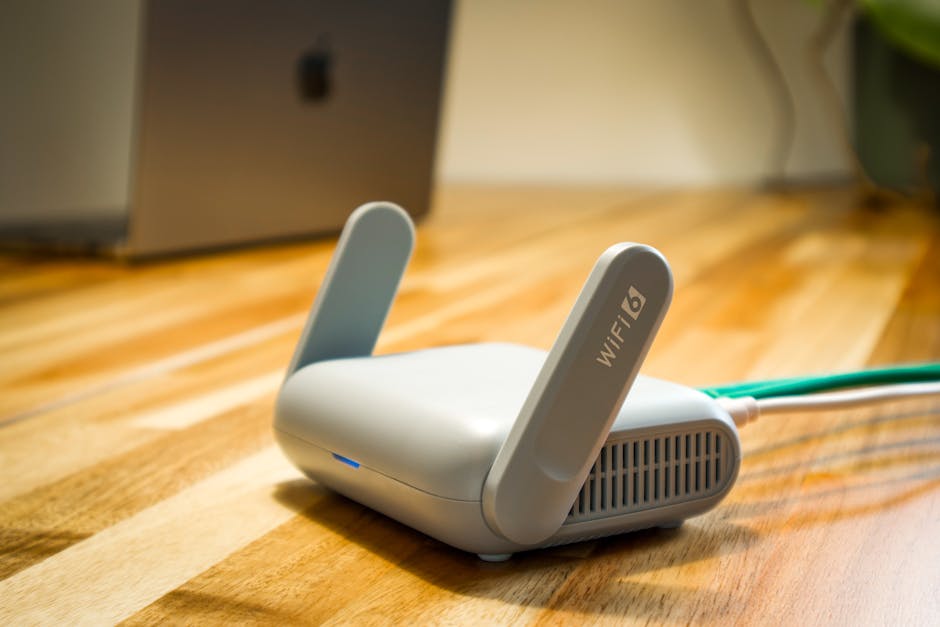
Photo by Pascal 📷 on Pexels
Your remote workers' home Wi-Fi networks are now part of your business attack surface. Every default password, outdated firmware, and unsecured guest network is a potential entry point for attackers. This lesson provides a practical guide to securing home networks — written so you can share it directly with your team.
Why Home Wi-Fi Matters to Your Business
When an employee connects to your company systems from home, the security of your data depends on the security of their home network. A compromised home router gives attackers a foothold on the same network as the worker's company laptop. From there, they can intercept traffic, inject malware, and pivot to company resources.
In 2023, researchers found that over 40% of home routers had known vulnerabilities, and fewer than 20% had updated firmware. Most home users have never changed their router's admin password. This is a massive, often-overlooked security gap.
The Home Wi-Fi Security Checklist
1. Change Default Admin Credentials (Critical)
Every router ships with a default admin username and password, often printed on a sticker on the device. These credentials are publicly available in online databases. Attackers use automated tools to try them against millions of routers.
- Open a web browser and navigate to your router's admin page (usually 192.168.0.1 or 192.168.1.1)
- Log in with the current credentials (check the router sticker or manual)
- Navigate to Administration or Security settings
- Change the admin password to a strong, unique password — use a password manager
- Write it down and store it securely — if you lose it, you'll need to factory reset
2. Use WPA3 or WPA2 Encryption (Critical)
Your Wi-Fi encryption determines how hard it is for someone nearby to intercept your data. Never use WEP or "Open" — they provide zero security.
- In router admin settings, navigate to Wireless > Security
- Set encryption to WPA3-Personal if available (newer routers)
- If WPA3 isn't available, use WPA2-Personal (AES) — never use TKIP
- Set a strong Wi-Fi password — at least 16 characters, mixing letters, numbers, and symbols
- Save settings — all devices will need to reconnect with the new password
3. Disable WPS (Important)
Wi-Fi Protected Setup (WPS) lets you connect devices by pressing a button or entering a PIN. Unfortunately, the PIN method has a known vulnerability that allows attackers to crack it in hours. Disable it.
- In router settings, find WPS settings (usually under Wireless)
- Disable WPS completely
- If workers need to add devices, they'll enter the Wi-Fi password manually
4. Update Router Firmware (Important)
Router manufacturers release firmware updates to patch security vulnerabilities. Many routers never get updated because users don't know to check.
- In router admin settings, look for Firmware Update or System Update
- Check for updates and install if available
- Enable automatic updates if the option exists
- If no updates are available and the router is more than 5 years old, consider replacing it — older routers stop receiving security patches
5. Create a Guest Network for Personal Devices (Recommended)
If workers have family members using the same Wi-Fi, personal devices (kids' tablets, smart TVs, IoT devices) should be on a separate guest network. This isolates potentially compromised personal devices from work devices.
- In router settings, look for Guest Network or Guest Access
- Enable the guest network with its own SSID and password
- Enable "Client Isolation" if available — prevents guest devices from communicating with each other
- Have workers connect family and IoT devices to the guest network
- Work devices connect to the main network only
6. Disable Remote Management (Important)
Some routers allow admin access from the internet. This should always be disabled — it's an open invitation for attackers.
- In router settings, find Remote Management or Remote Access
- Ensure it's disabled
- Disable UPnP (Universal Plug and Play) as well — it can open ports without your knowledge
7. Change the Wi-Fi Network Name (Minor but useful)
Don't use a network name that identifies your business or the router model. "Smith Family" is better than "AcmeCorp_Office" or "Netgear_5G".
Free Tools for Network Security Testing
- F-Secure Router Checker (free web tool): Checks if your router has known vulnerabilities or has been compromised
- Nmap (nmap.org, free): Scan your home network to identify open ports and services
- Wireshark (wireshark.org, free): Analyze network traffic for suspicious activity
- RouterSecurity.org: Free comprehensive guide to router security, including recommended secure routers
Step-by-Step: Creating a Home Network Security Guide for Your Team
- Download this checklist and share it with all remote workers
- Schedule a 30-minute training session where workers follow the checklist on their home networks
- Have workers report back — confirm they changed admin passwords, enabled encryption, and updated firmware
- Repeat quarterly — new vulnerabilities are discovered regularly, and firmware updates need to be checked periodically
Key Takeaways
- Change the default router admin password — this is the #1 home network security issue
- Use WPA3 or WPA2-AES encryption with a strong password — never use WEP or Open
- Disable WPS and remote management — both are known attack vectors
- Create a guest network for personal and IoT devices to isolate them from work devices
- Check for firmware updates quarterly — old firmware has known vulnerabilities
Securing Home Wi-Fi Networks
Photo by Pascal 📷 on Pexels
Your remote workers' home Wi-Fi networks are now part of your business attack surface. Every default password, outdated firmware, and unsecured guest network is a potential entry point for attackers. This lesson provides a practical guide to securing home networks — written so you can share it directly with your team.
Why Home Wi-Fi Matters to Your Business
When an employee connects to your company systems from home, the security of your data depends on the security of their home network. A compromised home router gives attackers a foothold on the same network as the worker's company laptop. From there, they can intercept traffic, inject malware, and pivot to company resources.
In 2023, researchers found that over 40% of home routers had known vulnerabilities, and fewer than 20% had updated firmware. Most home users have never changed their router's admin password. This is a massive, often-overlooked security gap.
The Home Wi-Fi Security Checklist
1. Change Default Admin Credentials (Critical)
Every router ships with a default admin username and password, often printed on a sticker on the device. These credentials are publicly available in online databases. Attackers use automated tools to try them against millions of routers.
- Open a web browser and navigate to your router's admin page (usually 192.168.0.1 or 192.168.1.1)
- Log in with the current credentials (check the router sticker or manual)
- Navigate to Administration or Security settings
- Change the admin password to a strong, unique password — use a password manager
- Write it down and store it securely — if you lose it, you'll need to factory reset
2. Use WPA3 or WPA2 Encryption (Critical)
Your Wi-Fi encryption determines how hard it is for someone nearby to intercept your data. Never use WEP or "Open" — they provide zero security.
- In router admin settings, navigate to Wireless > Security
- Set encryption to WPA3-Personal if available (newer routers)
- If WPA3 isn't available, use WPA2-Personal (AES) — never use TKIP
- Set a strong Wi-Fi password — at least 16 characters, mixing letters, numbers, and symbols
- Save settings — all devices will need to reconnect with the new password
3. Disable WPS (Important)
Wi-Fi Protected Setup (WPS) lets you connect devices by pressing a button or entering a PIN. Unfortunately, the PIN method has a known vulnerability that allows attackers to crack it in hours. Disable it.
- In router settings, find WPS settings (usually under Wireless)
- Disable WPS completely
- If workers need to add devices, they'll enter the Wi-Fi password manually
4. Update Router Firmware (Important)
Router manufacturers release firmware updates to patch security vulnerabilities. Many routers never get updated because users don't know to check.
- In router admin settings, look for Firmware Update or System Update
- Check for updates and install if available
- Enable automatic updates if the option exists
- If no updates are available and the router is more than 5 years old, consider replacing it — older routers stop receiving security patches
5. Create a Guest Network for Personal Devices (Recommended)
If workers have family members using the same Wi-Fi, personal devices (kids' tablets, smart TVs, IoT devices) should be on a separate guest network. This isolates potentially compromised personal devices from work devices.
- In router settings, look for Guest Network or Guest Access
- Enable the guest network with its own SSID and password
- Enable "Client Isolation" if available — prevents guest devices from communicating with each other
- Have workers connect family and IoT devices to the guest network
- Work devices connect to the main network only
6. Disable Remote Management (Important)
Some routers allow admin access from the internet. This should always be disabled — it's an open invitation for attackers.
- In router settings, find Remote Management or Remote Access
- Ensure it's disabled
- Disable UPnP (Universal Plug and Play) as well — it can open ports without your knowledge
7. Change the Wi-Fi Network Name (Minor but useful)
Don't use a network name that identifies your business or the router model. "Smith Family" is better than "AcmeCorp_Office" or "Netgear_5G".
Free Tools for Network Security Testing
- F-Secure Router Checker (free web tool): Checks if your router has known vulnerabilities or has been compromised
- Nmap (nmap.org, free): Scan your home network to identify open ports and services
- Wireshark (wireshark.org, free): Analyze network traffic for suspicious activity
- RouterSecurity.org: Free comprehensive guide to router security, including recommended secure routers
Step-by-Step: Creating a Home Network Security Guide for Your Team
- Download this checklist and share it with all remote workers
- Schedule a 30-minute training session where workers follow the checklist on their home networks
- Have workers report back — confirm they changed admin passwords, enabled encryption, and updated firmware
- Repeat quarterly — new vulnerabilities are discovered regularly, and firmware updates need to be checked periodically
Key Takeaways
- Change the default router admin password — this is the #1 home network security issue
- Use WPA3 or WPA2-AES encryption with a strong password — never use WEP or Open
- Disable WPS and remote management — both are known attack vectors
- Create a guest network for personal and IoT devices to isolate them from work devices
- Check for firmware updates quarterly — old firmware has known vulnerabilities
There are no comments for now.
to be the first to leave a comment.