CPUs, RAM, and Storage
CPUs, RAM, and Storage
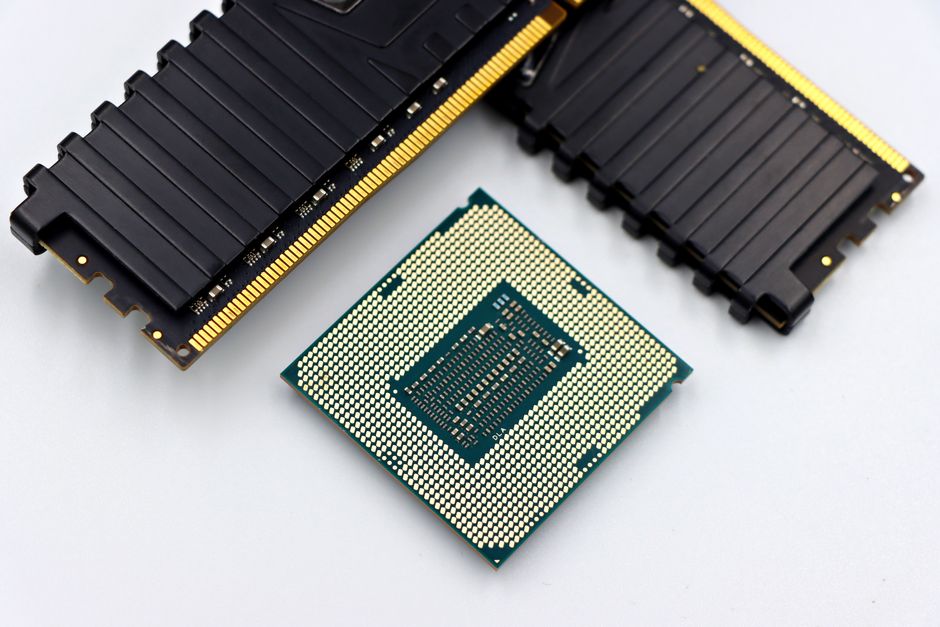
Photo by Marta Branco on Pexels
The CPU processes instructions, RAM holds active data, and storage persists your files. Understanding how these three interact is essential for troubleshooting performance issues and upgrading systems.
CPU Architecture
The CPU (Central Processing Unit) is the brain of the computer. Key specifications to understand:
Cores: Each core can process one instruction stream. Quad-core (4 cores) is the minimum for modern office work. 8+ cores for content creation, virtualization, or heavy multitasking.
Threads: Hyper-threading (Intel) or SMT (AMD) allows each core to handle two threads. A 4-core/8-thread CPU can handle 8 concurrent tasks. This does not double performance — typically 15-30% improvement in multithreaded workloads.
Clock Speed (GHz): The number of cycles per second. 3.0 GHz means 3 billion cycles per second. Higher is faster, but only within the same CPU generation. A 3.0 GHz 12th-gen Intel is faster than a 4.0 GHz 6th-gen Intel due to architectural improvements.
Cache: L1 (fastest, smallest, 32-128KB per core), L2 (256KB-2MB per core), L3 (shared across all cores, 8-64MB). More cache means the CPU spends less time waiting for data from RAM.
TDP (Thermal Design Power): The cooling requirement in watts. A 65W CPU needs less cooling than a 125W CPU. Mismatched CPU and cooler leads to thermal throttling and crashes.
RAM (Random Access Memory)
RAM is temporary, fast storage that holds data the CPU is actively using. When you open a program, it loads from storage into RAM. When RAM is full, the system uses the hard drive as 'virtual memory' — which is 100-1000x slower.
DDR4: Current standard. Speeds: 2133-3200 MHz typical. Capacity: 4GB-128GB. Voltage: 1.2V.
DDR5: Newer standard. Speeds: 4800-6400+ MHz. Capacity: 16GB-256GB. Voltage: 1.1V. Not backward compatible with DDR4.
How much RAM do you need?
• 4GB: Bare minimum, Windows will struggle with multiple tabs
• 8GB: Basic office work, email, web browsing
• 16GB: Standard for most users, comfortable multitasking
• 32GB: Power users, light virtualization, content creation
• 64GB+: Heavy virtualization, video editing, development
RAM Speed: Measured in MHz. Faster RAM improves performance, especially for CPU-bound tasks. DDR4-3200 is a good sweet spot for most systems.
Dual Channel vs Single Channel: Two sticks of RAM in dual-channel mode have ~2x bandwidth of one stick. Always use pairs (2x8GB is better than 1x16GB).
ECC RAM: Error-Correcting Code RAM detects and fixes single-bit errors. Used in servers and workstations. Not compatible with most consumer motherboards.
Storage Technologies
HDD (Hard Disk Drive): Mechanical spinning disks. Cheap per GB ($15-25/TB). Slow (100-200 MB/s). Good for bulk storage, backups, and archives. Typical sizes: 1TB-10TB+. Lifespan: 3-5 years.
SATA SSD: Solid state drive with SATA interface. 6x faster than HDD (500-550 MB/s). No moving parts. $50-100/TB. Good for OS drives in budget systems. Sizes: 250GB-4TB.
NVMe SSD: Uses PCIe interface. 10-30x faster than HDD (3000-7000+ MB/s). $80-150/TB. The best choice for OS and applications. Sizes: 500GB-8TB. M.2 form factor.
Storage for IT Support: Always recommend NVMe SSDs for OS drives. Use HDDs only for bulk data storage and backups. A 500GB NVMe SSD ($40) transforms a slow computer more than any other upgrade.
Step-by-Step: Upgrading RAM in a Desktop
Step 1: Identify current RAM using HWiNFO (type, speed, capacity, slots used).
Step 2: Check maximum supported RAM and speed in the motherboard manual.
Step 3: Power off, unplug, open case. Touch metal to ground yourself (prevent ESD damage).
Step 4: Press down on the RAM slot clips on both ends.
Step 5: Align the notch on the RAM stick with the key in the slot. Insert at a 90-degree angle.
Step 6: Press down firmly until the clips click into place. You will hear a snap.
Step 7: Boot and verify in Windows (Task Manager > Performance > Memory).
Common Storage Failures
SSD wear-out: SSDs have limited write cycles (TBW - Total Bytes Written). A 1TB SSD typically has 600 TBW. Consumer SSDs last 5+ years in normal use. Monitor with CrystalDiskInfo.
HDD bad sectors: Mechanical wear causes sectors to become unreadable. Windows runs chkdsk to mark them. Hearing clicking or grinding sounds means imminent failure — back up immediately.
SSD not detected: Common after a BIOS update or Windows update. Check if the drive is detected in BIOS. Try a different M.2 slot or SATA port.
Free Diagnostic Tools
CrystalDiskInfo: Monitor SSD/HDD S.M.A.R.T. health, temperature, and lifespan.
HWiNFO: Comprehensive hardware monitoring including CPU temps, RAM details, storage info.
Windows Memory Diagnostic: Built-in tool (mdsched.exe) for testing RAM errors. Takes 15-30 minutes.
MemTest86: Free bootable RAM tester. More thorough than Windows Memory Diagnostic. Runs outside the OS for accurate results.
Key Takeaways
• CPU cores/threads determine multitasking; clock speed determines per-task speed
• Always use RAM in pairs for dual-channel performance
• NVMe SSDs are the single biggest performance upgrade for older PCs
• Monitor drive health with CrystalDiskInfo — replace before failure, not after
• 8GB RAM minimum for office work, 16GB recommended
Common Questions
Q: Can I mix different RAM speeds?
A: Yes, but all RAM will run at the speed of the slowest stick. Mixing 3200MHz and 2666MHz RAM means both run at 2666MHz.
Q: Is NVMe worth it over SATA SSD?
A: For boot drives and applications, yes. NVMe is 5-10x faster. For storage of documents and photos, SATA SSD is fine.
CPUs, RAM, and Storage
Photo by Marta Branco on Pexels
The CPU processes instructions, RAM holds active data, and storage persists your files. Understanding how these three interact is essential for troubleshooting performance issues and upgrading systems.
CPU Architecture
The CPU (Central Processing Unit) is the brain of the computer. Key specifications to understand:
Cores: Each core can process one instruction stream. Quad-core (4 cores) is the minimum for modern office work. 8+ cores for content creation, virtualization, or heavy multitasking.
Threads: Hyper-threading (Intel) or SMT (AMD) allows each core to handle two threads. A 4-core/8-thread CPU can handle 8 concurrent tasks. This does not double performance — typically 15-30% improvement in multithreaded workloads.
Clock Speed (GHz): The number of cycles per second. 3.0 GHz means 3 billion cycles per second. Higher is faster, but only within the same CPU generation. A 3.0 GHz 12th-gen Intel is faster than a 4.0 GHz 6th-gen Intel due to architectural improvements.
Cache: L1 (fastest, smallest, 32-128KB per core), L2 (256KB-2MB per core), L3 (shared across all cores, 8-64MB). More cache means the CPU spends less time waiting for data from RAM.
TDP (Thermal Design Power): The cooling requirement in watts. A 65W CPU needs less cooling than a 125W CPU. Mismatched CPU and cooler leads to thermal throttling and crashes.
RAM (Random Access Memory)
RAM is temporary, fast storage that holds data the CPU is actively using. When you open a program, it loads from storage into RAM. When RAM is full, the system uses the hard drive as 'virtual memory' — which is 100-1000x slower.
DDR4: Current standard. Speeds: 2133-3200 MHz typical. Capacity: 4GB-128GB. Voltage: 1.2V.
DDR5: Newer standard. Speeds: 4800-6400+ MHz. Capacity: 16GB-256GB. Voltage: 1.1V. Not backward compatible with DDR4.
How much RAM do you need?
• 4GB: Bare minimum, Windows will struggle with multiple tabs
• 8GB: Basic office work, email, web browsing
• 16GB: Standard for most users, comfortable multitasking
• 32GB: Power users, light virtualization, content creation
• 64GB+: Heavy virtualization, video editing, development
RAM Speed: Measured in MHz. Faster RAM improves performance, especially for CPU-bound tasks. DDR4-3200 is a good sweet spot for most systems.
Dual Channel vs Single Channel: Two sticks of RAM in dual-channel mode have ~2x bandwidth of one stick. Always use pairs (2x8GB is better than 1x16GB).
ECC RAM: Error-Correcting Code RAM detects and fixes single-bit errors. Used in servers and workstations. Not compatible with most consumer motherboards.
Storage Technologies
HDD (Hard Disk Drive): Mechanical spinning disks. Cheap per GB ($15-25/TB). Slow (100-200 MB/s). Good for bulk storage, backups, and archives. Typical sizes: 1TB-10TB+. Lifespan: 3-5 years.
SATA SSD: Solid state drive with SATA interface. 6x faster than HDD (500-550 MB/s). No moving parts. $50-100/TB. Good for OS drives in budget systems. Sizes: 250GB-4TB.
NVMe SSD: Uses PCIe interface. 10-30x faster than HDD (3000-7000+ MB/s). $80-150/TB. The best choice for OS and applications. Sizes: 500GB-8TB. M.2 form factor.
Storage for IT Support: Always recommend NVMe SSDs for OS drives. Use HDDs only for bulk data storage and backups. A 500GB NVMe SSD ($40) transforms a slow computer more than any other upgrade.
Step-by-Step: Upgrading RAM in a Desktop
Step 1: Identify current RAM using HWiNFO (type, speed, capacity, slots used).
Step 2: Check maximum supported RAM and speed in the motherboard manual.
Step 3: Power off, unplug, open case. Touch metal to ground yourself (prevent ESD damage).
Step 4: Press down on the RAM slot clips on both ends.
Step 5: Align the notch on the RAM stick with the key in the slot. Insert at a 90-degree angle.
Step 6: Press down firmly until the clips click into place. You will hear a snap.
Step 7: Boot and verify in Windows (Task Manager > Performance > Memory).
Common Storage Failures
SSD wear-out: SSDs have limited write cycles (TBW - Total Bytes Written). A 1TB SSD typically has 600 TBW. Consumer SSDs last 5+ years in normal use. Monitor with CrystalDiskInfo.
HDD bad sectors: Mechanical wear causes sectors to become unreadable. Windows runs chkdsk to mark them. Hearing clicking or grinding sounds means imminent failure — back up immediately.
SSD not detected: Common after a BIOS update or Windows update. Check if the drive is detected in BIOS. Try a different M.2 slot or SATA port.
Free Diagnostic Tools
CrystalDiskInfo: Monitor SSD/HDD S.M.A.R.T. health, temperature, and lifespan.
HWiNFO: Comprehensive hardware monitoring including CPU temps, RAM details, storage info.
Windows Memory Diagnostic: Built-in tool (mdsched.exe) for testing RAM errors. Takes 15-30 minutes.
MemTest86: Free bootable RAM tester. More thorough than Windows Memory Diagnostic. Runs outside the OS for accurate results.
Key Takeaways
• CPU cores/threads determine multitasking; clock speed determines per-task speed
• Always use RAM in pairs for dual-channel performance
• NVMe SSDs are the single biggest performance upgrade for older PCs
• Monitor drive health with CrystalDiskInfo — replace before failure, not after
• 8GB RAM minimum for office work, 16GB recommended
Common Questions
Q: Can I mix different RAM speeds?
A: Yes, but all RAM will run at the speed of the slowest stick. Mixing 3200MHz and 2666MHz RAM means both run at 2666MHz.
Q: Is NVMe worth it over SATA SSD?
A: For boot drives and applications, yes. NVMe is 5-10x faster. For storage of documents and photos, SATA SSD is fine.
There are no comments for now.
to be the first to leave a comment.