PC Components and Motherboards
PC Components and Motherboards
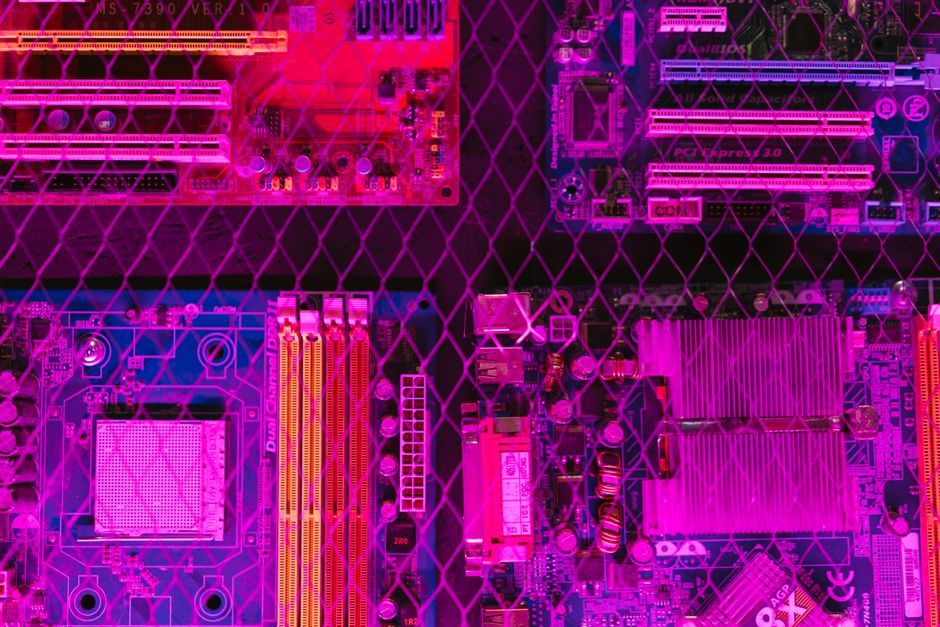
Photo by Mikhail Nilov on Pexels
The motherboard is the backbone of any computer. Every component connects to it — CPU, RAM, storage, graphics, networking, and peripherals. Understanding motherboard architecture is the foundation of IT support.
Motherboard Form Factors
The form factor determines the physical size and mounting points. The three most common form factors you will encounter in IT support are:
ATX (12 x 9.6 inches): The standard full-size motherboard found in desktop PCs and workstations. Offers the most expansion slots, RAM slots (4-8), and connectivity options. Used in most business desktop computers.
Micro-ATX (9.6 x 9.6 inches): A smaller variant that fits in both ATX and Micro-ATX cases. Typically has 4 RAM slots and 2-4 expansion slots. Common in budget and mid-range office computers.
Mini-ITX (6.7 x 6.7 inches): The smallest common form factor. Has 2 RAM slots and 1 expansion slot. Used in small form factor PCs, home servers, and embedded systems.
Critical Motherboard Components
CPU Socket: The slot where the processor sits. Intel uses LGA (Land Grid Array) sockets where pins are on the socket. AMD uses PGA (Pin Grid Array) where pins are on the CPU. You must match the socket type to the CPU — an LGA 1700 socket only fits 12th/13th gen Intel processors, while AM4 fits AMD Ryzen processors.
RAM Slots (DIMM): Most motherboards have 2-4 DDR4 or DDR5 RAM slots. RAM must match the motherboard's supported type and speed. Mixing DDR4 and DDR5 will not work — they are physically different and not interchangeable.
Storage Connectors: SATA ports (6 Gbps, for HDDs and SSDs), M.2 slots (for NVMe SSDs, much faster at 32 Gbps), and sometimes U.2 ports for enterprise SSDs. NVMe drives are 5-6x faster than SATA SSDs.
Expansion Slots (PCIe): PCIe x16 for graphics cards, PCIe x1 for network cards, sound cards, and other peripherals. PCIe 4.0 is current standard, PCIe 5.0 is emerging.
Power Connectors: 24-pin ATX power, 8-pin EPS for CPU, 6/8-pin PCIe for graphics. Mismatched power connectors can destroy components.
Front Panel Headers: Small pins for power button, reset button, HDD LED, power LED, and front panel audio. These are the most commonly misconnected pins in PC assembly.
I/O Ports: USB ports, Ethernet (RJ-45), audio jacks, HDMI/DisplayPort (if onboard graphics), PS/2 (legacy). These are pre-installed on the motherboard's I/O shield.
Step-by-Step: Identifying Motherboard Components
Step 1: Power off and unplug the computer. Open the case side panel.
Step 2: Locate the CPU socket — usually near the top-center, with a lever arm for locking the CPU in place.
Step 3: Find the RAM slots — long slots parallel to each other, usually to the right of the CPU.
Step 4: Identify storage connectors — SATA ports are small L-shaped connectors, M.2 slots are flat horizontal slots.
Step 5: Check the expansion slots — the longest slot (x16) is for graphics, shorter slots (x1) for other cards.
Step 6: Find the power connectors — the 24-pin is the largest connector, usually on the right edge.
Common Motherboard Failures
Bad capacitors: Look for bulging or leaking capacitors (cylindrical components). This causes random crashes, boot failures, and instability. Common in older motherboards (2005-2010 era).
CMOS battery dead: The CR2032 coin battery maintains BIOS settings when powered off. If dead, the system loses time and BIOS settings on every reboot. Replace with a new CR2032 — costs about $2.
Bent CPU socket pins: Even one bent pin in an LGA socket can prevent boot. Inspect with a magnifying glass. Can sometimes be carefully straightened with a mechanical pencil.
BIOS corruption: Failed BIOS update or power surge can corrupt the BIOS. Many modern motherboards have dual BIOS or BIOS Flashback to recover.
Free Tools for Hardware Diagnostics
HWiNFO: Free hardware information tool showing all components, temperatures, voltages, and sensors. Essential for diagnostics.
CPU-Z: Free CPU, motherboard, and RAM identification tool. Shows exact model, speed, and specifications.
CrystalDiskInfo: Free SSD/HDD health monitoring tool. Reads S.M.A.R.T. data to predict drive failures.
Motherboard manual: Always download the official manual from the manufacturer's website. It has pin diagrams, jumper settings, and troubleshooting guides.
Key Takeaways
• The motherboard is the foundation — all components connect to it
• Match CPU socket, RAM type, and storage connectors when replacing parts
• Bad capacitors and dead CMOS batteries are common failures
• Always consult the motherboard manual for pin diagrams and specifications
• HWiNFO and CPU-Z are essential free diagnostic tools
Common Questions
Q: Can I upgrade my CPU without changing the motherboard?
A: Only if the new CPU uses the same socket type. Check the motherboard's CPU support list on the manufacturer's website.
Q: What happens if I install RAM in the wrong slots?
A: The system may not boot or will run in single-channel mode instead of dual-channel, reducing performance by 10-20%. Check the manual for correct slot configuration.
PC Components and Motherboards
Photo by Mikhail Nilov on Pexels
The motherboard is the backbone of any computer. Every component connects to it — CPU, RAM, storage, graphics, networking, and peripherals. Understanding motherboard architecture is the foundation of IT support.
Motherboard Form Factors
The form factor determines the physical size and mounting points. The three most common form factors you will encounter in IT support are:
ATX (12 x 9.6 inches): The standard full-size motherboard found in desktop PCs and workstations. Offers the most expansion slots, RAM slots (4-8), and connectivity options. Used in most business desktop computers.
Micro-ATX (9.6 x 9.6 inches): A smaller variant that fits in both ATX and Micro-ATX cases. Typically has 4 RAM slots and 2-4 expansion slots. Common in budget and mid-range office computers.
Mini-ITX (6.7 x 6.7 inches): The smallest common form factor. Has 2 RAM slots and 1 expansion slot. Used in small form factor PCs, home servers, and embedded systems.
Critical Motherboard Components
CPU Socket: The slot where the processor sits. Intel uses LGA (Land Grid Array) sockets where pins are on the socket. AMD uses PGA (Pin Grid Array) where pins are on the CPU. You must match the socket type to the CPU — an LGA 1700 socket only fits 12th/13th gen Intel processors, while AM4 fits AMD Ryzen processors.
RAM Slots (DIMM): Most motherboards have 2-4 DDR4 or DDR5 RAM slots. RAM must match the motherboard's supported type and speed. Mixing DDR4 and DDR5 will not work — they are physically different and not interchangeable.
Storage Connectors: SATA ports (6 Gbps, for HDDs and SSDs), M.2 slots (for NVMe SSDs, much faster at 32 Gbps), and sometimes U.2 ports for enterprise SSDs. NVMe drives are 5-6x faster than SATA SSDs.
Expansion Slots (PCIe): PCIe x16 for graphics cards, PCIe x1 for network cards, sound cards, and other peripherals. PCIe 4.0 is current standard, PCIe 5.0 is emerging.
Power Connectors: 24-pin ATX power, 8-pin EPS for CPU, 6/8-pin PCIe for graphics. Mismatched power connectors can destroy components.
Front Panel Headers: Small pins for power button, reset button, HDD LED, power LED, and front panel audio. These are the most commonly misconnected pins in PC assembly.
I/O Ports: USB ports, Ethernet (RJ-45), audio jacks, HDMI/DisplayPort (if onboard graphics), PS/2 (legacy). These are pre-installed on the motherboard's I/O shield.
Step-by-Step: Identifying Motherboard Components
Step 1: Power off and unplug the computer. Open the case side panel.
Step 2: Locate the CPU socket — usually near the top-center, with a lever arm for locking the CPU in place.
Step 3: Find the RAM slots — long slots parallel to each other, usually to the right of the CPU.
Step 4: Identify storage connectors — SATA ports are small L-shaped connectors, M.2 slots are flat horizontal slots.
Step 5: Check the expansion slots — the longest slot (x16) is for graphics, shorter slots (x1) for other cards.
Step 6: Find the power connectors — the 24-pin is the largest connector, usually on the right edge.
Common Motherboard Failures
Bad capacitors: Look for bulging or leaking capacitors (cylindrical components). This causes random crashes, boot failures, and instability. Common in older motherboards (2005-2010 era).
CMOS battery dead: The CR2032 coin battery maintains BIOS settings when powered off. If dead, the system loses time and BIOS settings on every reboot. Replace with a new CR2032 — costs about $2.
Bent CPU socket pins: Even one bent pin in an LGA socket can prevent boot. Inspect with a magnifying glass. Can sometimes be carefully straightened with a mechanical pencil.
BIOS corruption: Failed BIOS update or power surge can corrupt the BIOS. Many modern motherboards have dual BIOS or BIOS Flashback to recover.
Free Tools for Hardware Diagnostics
HWiNFO: Free hardware information tool showing all components, temperatures, voltages, and sensors. Essential for diagnostics.
CPU-Z: Free CPU, motherboard, and RAM identification tool. Shows exact model, speed, and specifications.
CrystalDiskInfo: Free SSD/HDD health monitoring tool. Reads S.M.A.R.T. data to predict drive failures.
Motherboard manual: Always download the official manual from the manufacturer's website. It has pin diagrams, jumper settings, and troubleshooting guides.
Key Takeaways
• The motherboard is the foundation — all components connect to it
• Match CPU socket, RAM type, and storage connectors when replacing parts
• Bad capacitors and dead CMOS batteries are common failures
• Always consult the motherboard manual for pin diagrams and specifications
• HWiNFO and CPU-Z are essential free diagnostic tools
Common Questions
Q: Can I upgrade my CPU without changing the motherboard?
A: Only if the new CPU uses the same socket type. Check the motherboard's CPU support list on the manufacturer's website.
Q: What happens if I install RAM in the wrong slots?
A: The system may not boot or will run in single-channel mode instead of dual-channel, reducing performance by 10-20%. Check the manual for correct slot configuration.
There are no comments for now.
to be the first to leave a comment.