Windows Installation and Configuration
Windows Installation and Configuration
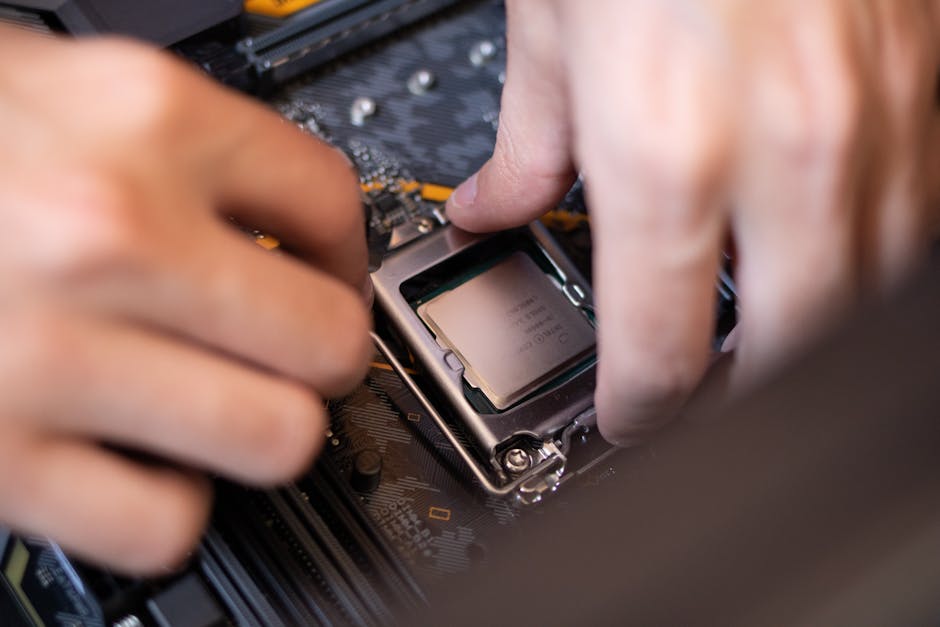
Photo by Athena Sandrini on Pexels
Windows remains the dominant operating system in business environments. Understanding installation, configuration, and management is a core CompTIA A+ skill.
Windows Editions
Windows 11 Home: Consumer edition. Lacks BitLocker, Group Policy, Hyper-V, and Remote Desktop hosting. Not suitable for managed business environments.
Windows 11 Pro: Business standard. Includes BitLocker encryption, Group Policy Editor, Hyper-V virtualization, Remote Desktop hosting, and domain join capability.
Windows 11 Enterprise: Large organization edition. Adds DirectAccess, AppLocker, Windows Defender Application Guard. Requires volume licensing.
Windows 11 LTSC: Long-Term Servicing Channel. No feature updates, no bloatware, no store apps. Ideal for kiosks, medical devices, and stable environments.
System Requirements (Windows 11)
• CPU: 1 GHz, 2+ cores, compatible 64-bit processor
• RAM: 4 GB minimum (8 GB recommended)
• Storage: 64 GB minimum
• TPM 2.0 required (Trusted Platform Module)
• Secure Boot capable UEFI firmware
• DirectX 12 compatible graphics
• TPM 2.0 is the most common blocker for upgrades — older machines without TPM 2.0 cannot officially run Windows 11.
Step-by-Step: Clean Windows Installation
Step 1: Download the Windows 11 Media Creation Tool from Microsoft.com. Create a bootable USB drive (8GB+).
Step 2: Back up all user data to external storage or cloud. A clean install erases everything.
Step 3: Insert the USB drive. Reboot the computer. Press the BIOS key (Del, F2, F10, or F12) to enter BIOS.
Step 4: Set the USB drive as the first boot device. Save and exit BIOS.
Step 5: Windows Setup loads. Select language, time, and keyboard. Click 'Install now'.
Step 6: Enter product key or click 'I don't have a product key' (activate later).
Step 7: Select 'Custom: Install Windows only (advanced)'. Delete all partitions on the target drive. Click 'New' to create a partition, then 'Next'.
Step 8: Windows installs. The computer restarts several times. This takes 15-30 minutes.
Step 9: After installation, create a local account (or sign in with Microsoft account). Set a strong password.
Step 10: Run Windows Update to install drivers and security patches. Install manufacturer drivers for GPU, chipset, and networking.
Windows Configuration Essentials
Windows Update: Settings > Windows Update. Install all available updates. Configure active hours so updates don't restart during work. Consider deferring feature updates by 30 days for stability.
BitLocker Encryption: Control Panel > BitLocker Drive Encryption. Turn on BitLocker. Save the recovery key to your Microsoft account, a USB drive, or print it. If the recovery key is lost and the TPM resets, data is permanently inaccessible.
System Restore: Control Panel > System > System Protection. Create restore points before making changes. Allows rollback if an update or driver causes problems.
Power Plans: Control Panel > Power Options. 'Balanced' for laptops (saves battery), 'High Performance' for desktops (maximum speed), 'Power Saver' for extended battery life.
User Accounts: Settings > Accounts. Standard user (cannot install software or change system settings) vs Administrator (full access). Always use a standard account for daily work — prevents malware from installing silently.
Remote Desktop: Settings > System > Remote Desktop. Enable for remote support. Only available in Pro edition. Use strong passwords and Network Level Authentication (NLA).
Device Manager
Device Manager (devmgmt.msc) is the primary tool for hardware management:
• Yellow exclamation: Device has driver issues
• Red X: Device is disabled
• Down arrow: Device is disabled
• Right-click > Update driver: Search automatically or browse for driver files
• Right-click > Uninstall device: Remove driver (check 'delete driver software' to fully remove)
• Right-click > Disable: Temporarily disable without removing driver
• View > Show hidden devices: See disconnected devices and ghost entries
Common Windows Issues
Blue Screen of Death (BSOD): Note the stop code (e.g., IRQL_NOT_LESS_OR_EQUAL, PAGE_FAULT_IN_NONPAGED_AREA). Check Event Viewer (eventvwr.msc) for the error details. Usually caused by bad drivers or faulty hardware (RAM, SSD).
Boot failure: 'INACCESSIBLE_BOOT_DEVICE' usually means storage driver issue or failing drive. Boot from installation USB, open Command Prompt, run chkdsk /f /r.
Slow performance: Check Task Manager (Ctrl+Shift+Esc) for high CPU/RAM usage. Disable startup programs. Run disk cleanup. Check for malware with Windows Defender.
Windows Update stuck: Stop the wuauserv service (net stop wuauserv), delete C:\Windows\SoftwareDistribution\Download\*, restart service.
Free Tools for Windows Management
PowerShell: Built-in command-line shell and scripting language. More powerful than Command Prompt. Run as Administrator for system changes.
Sysinternals Suite: Free Microsoft tools including Process Explorer (advanced task manager), Autoruns (startup manager), and PsExec (remote execution).
Windows ADK: Assessment and Deployment Kit. Includes Windows System Image Manager for automated installations.
Key Takeaways
• Windows 11 requires TPM 2.0 and Secure Boot — older PCs may not be compatible
• Always do a clean install for new systems — upgrades carry over old problems
• Use Standard user accounts for daily work, Administrator only for installations
• Device Manager is your primary hardware diagnostic tool
• BitLocker recovery keys must be saved — lost keys mean permanently lost data
Common Questions
Q: How do I bypass the Microsoft account requirement during setup?
A: Enter a locked email (like no@thankyou.com) and any password. Windows will fall back to local account creation.
Q: Should I install all Windows Updates immediately?
A: Security updates yes. Feature updates — wait 30 days for stability. Set update deferrals in Group Policy or Settings.
Windows Installation and Configuration
Photo by Athena Sandrini on Pexels
Windows remains the dominant operating system in business environments. Understanding installation, configuration, and management is a core CompTIA A+ skill.
Windows Editions
Windows 11 Home: Consumer edition. Lacks BitLocker, Group Policy, Hyper-V, and Remote Desktop hosting. Not suitable for managed business environments.
Windows 11 Pro: Business standard. Includes BitLocker encryption, Group Policy Editor, Hyper-V virtualization, Remote Desktop hosting, and domain join capability.
Windows 11 Enterprise: Large organization edition. Adds DirectAccess, AppLocker, Windows Defender Application Guard. Requires volume licensing.
Windows 11 LTSC: Long-Term Servicing Channel. No feature updates, no bloatware, no store apps. Ideal for kiosks, medical devices, and stable environments.
System Requirements (Windows 11)
• CPU: 1 GHz, 2+ cores, compatible 64-bit processor
• RAM: 4 GB minimum (8 GB recommended)
• Storage: 64 GB minimum
• TPM 2.0 required (Trusted Platform Module)
• Secure Boot capable UEFI firmware
• DirectX 12 compatible graphics
• TPM 2.0 is the most common blocker for upgrades — older machines without TPM 2.0 cannot officially run Windows 11.
Step-by-Step: Clean Windows Installation
Step 1: Download the Windows 11 Media Creation Tool from Microsoft.com. Create a bootable USB drive (8GB+).
Step 2: Back up all user data to external storage or cloud. A clean install erases everything.
Step 3: Insert the USB drive. Reboot the computer. Press the BIOS key (Del, F2, F10, or F12) to enter BIOS.
Step 4: Set the USB drive as the first boot device. Save and exit BIOS.
Step 5: Windows Setup loads. Select language, time, and keyboard. Click 'Install now'.
Step 6: Enter product key or click 'I don't have a product key' (activate later).
Step 7: Select 'Custom: Install Windows only (advanced)'. Delete all partitions on the target drive. Click 'New' to create a partition, then 'Next'.
Step 8: Windows installs. The computer restarts several times. This takes 15-30 minutes.
Step 9: After installation, create a local account (or sign in with Microsoft account). Set a strong password.
Step 10: Run Windows Update to install drivers and security patches. Install manufacturer drivers for GPU, chipset, and networking.
Windows Configuration Essentials
Windows Update: Settings > Windows Update. Install all available updates. Configure active hours so updates don't restart during work. Consider deferring feature updates by 30 days for stability.
BitLocker Encryption: Control Panel > BitLocker Drive Encryption. Turn on BitLocker. Save the recovery key to your Microsoft account, a USB drive, or print it. If the recovery key is lost and the TPM resets, data is permanently inaccessible.
System Restore: Control Panel > System > System Protection. Create restore points before making changes. Allows rollback if an update or driver causes problems.
Power Plans: Control Panel > Power Options. 'Balanced' for laptops (saves battery), 'High Performance' for desktops (maximum speed), 'Power Saver' for extended battery life.
User Accounts: Settings > Accounts. Standard user (cannot install software or change system settings) vs Administrator (full access). Always use a standard account for daily work — prevents malware from installing silently.
Remote Desktop: Settings > System > Remote Desktop. Enable for remote support. Only available in Pro edition. Use strong passwords and Network Level Authentication (NLA).
Device Manager
Device Manager (devmgmt.msc) is the primary tool for hardware management:
• Yellow exclamation: Device has driver issues
• Red X: Device is disabled
• Down arrow: Device is disabled
• Right-click > Update driver: Search automatically or browse for driver files
• Right-click > Uninstall device: Remove driver (check 'delete driver software' to fully remove)
• Right-click > Disable: Temporarily disable without removing driver
• View > Show hidden devices: See disconnected devices and ghost entries
Common Windows Issues
Blue Screen of Death (BSOD): Note the stop code (e.g., IRQL_NOT_LESS_OR_EQUAL, PAGE_FAULT_IN_NONPAGED_AREA). Check Event Viewer (eventvwr.msc) for the error details. Usually caused by bad drivers or faulty hardware (RAM, SSD).
Boot failure: 'INACCESSIBLE_BOOT_DEVICE' usually means storage driver issue or failing drive. Boot from installation USB, open Command Prompt, run chkdsk /f /r.
Slow performance: Check Task Manager (Ctrl+Shift+Esc) for high CPU/RAM usage. Disable startup programs. Run disk cleanup. Check for malware with Windows Defender.
Windows Update stuck: Stop the wuauserv service (net stop wuauserv), delete C:\Windows\SoftwareDistribution\Download\*, restart service.
Free Tools for Windows Management
PowerShell: Built-in command-line shell and scripting language. More powerful than Command Prompt. Run as Administrator for system changes.
Sysinternals Suite: Free Microsoft tools including Process Explorer (advanced task manager), Autoruns (startup manager), and PsExec (remote execution).
Windows ADK: Assessment and Deployment Kit. Includes Windows System Image Manager for automated installations.
Key Takeaways
• Windows 11 requires TPM 2.0 and Secure Boot — older PCs may not be compatible
• Always do a clean install for new systems — upgrades carry over old problems
• Use Standard user accounts for daily work, Administrator only for installations
• Device Manager is your primary hardware diagnostic tool
• BitLocker recovery keys must be saved — lost keys mean permanently lost data
Common Questions
Q: How do I bypass the Microsoft account requirement during setup?
A: Enter a locked email (like no@thankyou.com) and any password. Windows will fall back to local account creation.
Q: Should I install all Windows Updates immediately?
A: Security updates yes. Feature updates — wait 30 days for stability. Set update deferrals in Group Policy or Settings.
There are no comments for now.
to be the first to leave a comment.