Hardware Troubleshooting Scenarios
Hardware Troubleshooting Scenarios
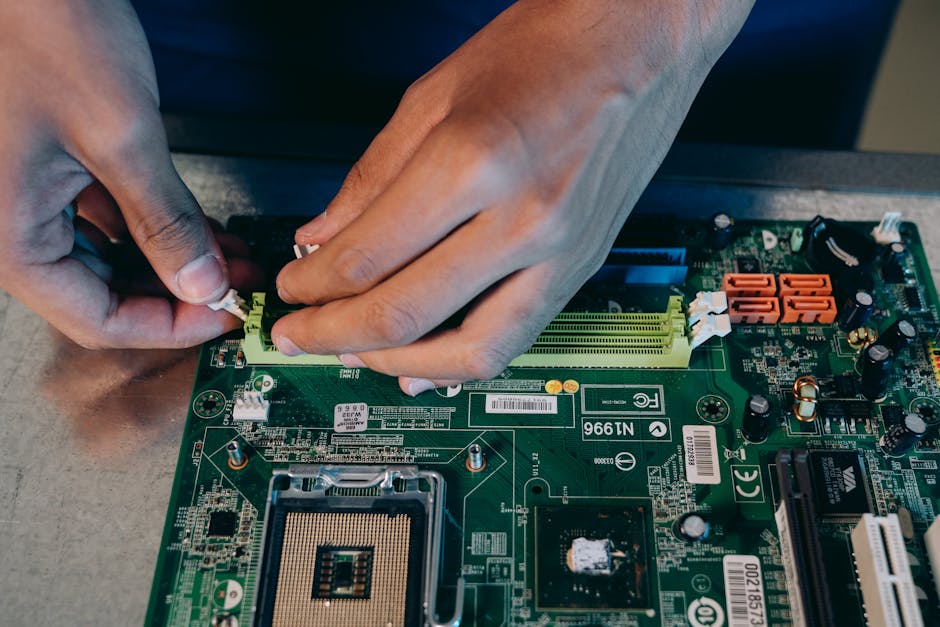
Photo by Mikhail Nilov on Pexels
Hardware problems manifest in specific ways. Learning to recognize symptoms and apply the right diagnostic approach saves hours of trial and error.
Scenario 1: Computer Won't Power On
Symptoms: Press power button — nothing happens. No lights, no fans, no sound.
Troubleshooting steps:
1. Check the power outlet — plug in a lamp to verify it works
2. Check the power cable — swap with a known-good cable
3. Check the power switch on the back of the PSU (if applicable)
4. Check the surge protector / UPS — is it tripped?
5. Open the case: check the front panel power button connector on the motherboard
6. Try a paperclip test on the PSU: jump the green and black pins on the 24-pin connector. If fans spin, the PSU works and the problem is the motherboard or power button.
7. If PSU works: check motherboard for visible damage (bulging capacitors, burn marks)
8. If motherboard looks fine: reseat RAM, GPU, and all power connectors
9. Remove all non-essential components (GPU, extra RAM, extra drives) — try to POST with minimal config
Most common cause: Dead power supply. Second most common: loose power connector.
Scenario 2: POST Beep Codes and Error Messages
When a computer boots, the BIOS/UEFI runs POST (Power-On Self-Test). If it finds a problem, it reports via beep codes or on-screen messages.
Common beep codes (varies by BIOS manufacturer):
• 1 short beep: Normal boot — system is OK
• 2 short beeps: POST error — check screen message
• Continuous beeping: RAM not detected or failing
• 1 long, 2 short: Video card error
• 1 long, 3 short: Memory error
• 1 long, 8 short: Video memory error
Modern UEFI: Many newer motherboards show error codes on a 2-digit display on the board itself. Check the motherboard manual for code meanings.
Troubleshooting: Look up the specific code in the motherboard manual. Common fixes: reseat the component, replace the component, clear CMOS.
Scenario 3: Computer Overheating and Shutting Down
Symptoms: Computer shuts down during use, especially under load (gaming, heavy work). CPU temperature exceeds 90°C in HWiNFO.
Troubleshooting:
1. Check CPU fan — is it spinning? If not, replace the fan (or the entire cooler)
2. Check thermal paste — if dried out, clean with isopropyl alcohol and apply new paste (pea-sized amount in center of CPU)
3. Check case airflow — are intake and exhaust fans working? Are cables blocking airflow?
4. Check for dust buildup — use compressed air to clean heatsink fins and fans
5. Check if CPU cooler is properly mounted — all 4 screws tight, even pressure
6. Check ambient temperature — a server closet at 90°F will cause thermal issues
7. Check CPU usage in Task Manager — a runaway process at 100% CPU generates more heat
Prevention: Clean dust every 6 months. Replace thermal paste every 2-3 years. Monitor temperatures with HWiNFO or Core Temp. Set CPU temperature alarm at 85°C.
Scenario 4: Hard Drive Failure
Symptoms: Slow performance, clicking/grinding sounds (HDD), Blue Screen of Death, 'Disk not found' error, file corruption.
Troubleshooting:
1. Run CrystalDiskInfo — check S.M.A.R.T. status. If 'Caution' or 'Bad', the drive is failing.
2. Run chkdsk /f /r — scans and marks bad sectors. If many bad sectors, drive is dying.
3. Back up data immediately if you suspect failure — do not delay
4. Check in BIOS — is the drive detected? If not, check SATA cable and power connector
5. Try the drive in another computer — if not detected there either, the drive is dead
6. If detected but can't boot: the partition table or filesystem may be corrupt. Try TestDisk or Photorec for recovery.
Warning signs: Clicking sounds = mechanical failure imminent. Slow boots = failing sectors. Missing files = filesystem corruption. If you hear clicking, shut down immediately — every second the drive runs brings it closer to total failure.
Scenario 5: RAM Failure
Symptoms: Random Blue Screen of Death (especially MEMORY_MANAGEMENT), random reboots, application crashes, 'Your PC ran into a problem' errors.
Troubleshooting:
1. Run Windows Memory Diagnostic (mdsched.exe) — takes 15-30 minutes, runs on reboot
2. For thorough testing: use MemTest86 (bootable USB, runs outside Windows, more accurate)
3. If errors found: remove all RAM sticks, add one back, test. Repeat for each stick to find the bad one.
4. Replace the bad RAM stick. Verify the new stick matches existing (type, speed, capacity).
5. If all sticks pass individually but fail together: check if they're mismatched (different speeds, different brands). Mixing RAM speeds can cause instability.
Prevention: Use RAM from the same manufacturer and same speed. Avoid mixing brands and speeds. Ground yourself before handling RAM to prevent ESD damage.
Scenario 6: No Display on Monitor
Symptoms: Computer powers on (fans spin, lights on), but monitor shows 'No Signal' or stays black.
Troubleshooting:
1. Check monitor power and input source — is it on the right input (HDMI/DP)?
2. Check the video cable — swap with a known-good cable
3. Check if the GPU is seated properly — reseat if needed
4. Try the other video port (if GPU has multiple outputs, or use motherboard video)
5. Try another monitor — if it works, the monitor is dead
6. Try integrated graphics — remove the GPU and plug into motherboard video out
7. Check if the GPU fan is spinning — if not, the GPU may be dead or not getting power
8. Check GPU power connectors — 6/8 pin PCIe power cables must be connected
9. Listen for POST beep codes — 1 long, 2 short indicates video card error
Most common cause: Wrong input selected on monitor. Second: loose cable. Third: dead GPU.
Free Hardware Diagnostic Tools
HWiNFO: Comprehensive hardware monitoring — temperatures, voltages, fan speeds. Essential for thermal diagnostics.
CrystalDiskInfo: S.M.A.R.T. health monitoring for SSDs and HDDs. Free and portable.
MemTest86: Bootable RAM tester. Free version available. Most accurate RAM diagnostic.
Prime95: CPU stress test. If the system crashes within 15 minutes, there's a hardware issue.
FurMark: GPU stress test. Reveals overheating or instability under load.
Key Takeaways
• Always start with the simplest fix — check cables, power, connections
• POST beep codes and LED codes tell you exactly what's wrong — check the manual
• Overheating causes random shutdowns — clean dust and replace thermal paste
• Clicking HDD sounds mean imminent failure — back up immediately
• Use the substitution method — swap with known-good parts to isolate the problem
• Document everything — what you tried, what worked, what didn't
Common Questions
Q: How do I know if the PSU is bad?
A: Paperclip test — jump green and black pins on 24-pin. If fans spin, PSU works. If not, PSU is dead. Or use a PSU tester ($10).
Q: Can a bad cable cause intermittent issues?
A: Yes. Loose SATA cables cause random drive disappearances. Bad network cables cause drops. Always try a new cable before replacing the device.
Hardware Troubleshooting Scenarios
Photo by Mikhail Nilov on Pexels
Hardware problems manifest in specific ways. Learning to recognize symptoms and apply the right diagnostic approach saves hours of trial and error.
Scenario 1: Computer Won't Power On
Symptoms: Press power button — nothing happens. No lights, no fans, no sound.
Troubleshooting steps:
1. Check the power outlet — plug in a lamp to verify it works
2. Check the power cable — swap with a known-good cable
3. Check the power switch on the back of the PSU (if applicable)
4. Check the surge protector / UPS — is it tripped?
5. Open the case: check the front panel power button connector on the motherboard
6. Try a paperclip test on the PSU: jump the green and black pins on the 24-pin connector. If fans spin, the PSU works and the problem is the motherboard or power button.
7. If PSU works: check motherboard for visible damage (bulging capacitors, burn marks)
8. If motherboard looks fine: reseat RAM, GPU, and all power connectors
9. Remove all non-essential components (GPU, extra RAM, extra drives) — try to POST with minimal config
Most common cause: Dead power supply. Second most common: loose power connector.
Scenario 2: POST Beep Codes and Error Messages
When a computer boots, the BIOS/UEFI runs POST (Power-On Self-Test). If it finds a problem, it reports via beep codes or on-screen messages.
Common beep codes (varies by BIOS manufacturer):
• 1 short beep: Normal boot — system is OK
• 2 short beeps: POST error — check screen message
• Continuous beeping: RAM not detected or failing
• 1 long, 2 short: Video card error
• 1 long, 3 short: Memory error
• 1 long, 8 short: Video memory error
Modern UEFI: Many newer motherboards show error codes on a 2-digit display on the board itself. Check the motherboard manual for code meanings.
Troubleshooting: Look up the specific code in the motherboard manual. Common fixes: reseat the component, replace the component, clear CMOS.
Scenario 3: Computer Overheating and Shutting Down
Symptoms: Computer shuts down during use, especially under load (gaming, heavy work). CPU temperature exceeds 90°C in HWiNFO.
Troubleshooting:
1. Check CPU fan — is it spinning? If not, replace the fan (or the entire cooler)
2. Check thermal paste — if dried out, clean with isopropyl alcohol and apply new paste (pea-sized amount in center of CPU)
3. Check case airflow — are intake and exhaust fans working? Are cables blocking airflow?
4. Check for dust buildup — use compressed air to clean heatsink fins and fans
5. Check if CPU cooler is properly mounted — all 4 screws tight, even pressure
6. Check ambient temperature — a server closet at 90°F will cause thermal issues
7. Check CPU usage in Task Manager — a runaway process at 100% CPU generates more heat
Prevention: Clean dust every 6 months. Replace thermal paste every 2-3 years. Monitor temperatures with HWiNFO or Core Temp. Set CPU temperature alarm at 85°C.
Scenario 4: Hard Drive Failure
Symptoms: Slow performance, clicking/grinding sounds (HDD), Blue Screen of Death, 'Disk not found' error, file corruption.
Troubleshooting:
1. Run CrystalDiskInfo — check S.M.A.R.T. status. If 'Caution' or 'Bad', the drive is failing.
2. Run chkdsk /f /r — scans and marks bad sectors. If many bad sectors, drive is dying.
3. Back up data immediately if you suspect failure — do not delay
4. Check in BIOS — is the drive detected? If not, check SATA cable and power connector
5. Try the drive in another computer — if not detected there either, the drive is dead
6. If detected but can't boot: the partition table or filesystem may be corrupt. Try TestDisk or Photorec for recovery.
Warning signs: Clicking sounds = mechanical failure imminent. Slow boots = failing sectors. Missing files = filesystem corruption. If you hear clicking, shut down immediately — every second the drive runs brings it closer to total failure.
Scenario 5: RAM Failure
Symptoms: Random Blue Screen of Death (especially MEMORY_MANAGEMENT), random reboots, application crashes, 'Your PC ran into a problem' errors.
Troubleshooting:
1. Run Windows Memory Diagnostic (mdsched.exe) — takes 15-30 minutes, runs on reboot
2. For thorough testing: use MemTest86 (bootable USB, runs outside Windows, more accurate)
3. If errors found: remove all RAM sticks, add one back, test. Repeat for each stick to find the bad one.
4. Replace the bad RAM stick. Verify the new stick matches existing (type, speed, capacity).
5. If all sticks pass individually but fail together: check if they're mismatched (different speeds, different brands). Mixing RAM speeds can cause instability.
Prevention: Use RAM from the same manufacturer and same speed. Avoid mixing brands and speeds. Ground yourself before handling RAM to prevent ESD damage.
Scenario 6: No Display on Monitor
Symptoms: Computer powers on (fans spin, lights on), but monitor shows 'No Signal' or stays black.
Troubleshooting:
1. Check monitor power and input source — is it on the right input (HDMI/DP)?
2. Check the video cable — swap with a known-good cable
3. Check if the GPU is seated properly — reseat if needed
4. Try the other video port (if GPU has multiple outputs, or use motherboard video)
5. Try another monitor — if it works, the monitor is dead
6. Try integrated graphics — remove the GPU and plug into motherboard video out
7. Check if the GPU fan is spinning — if not, the GPU may be dead or not getting power
8. Check GPU power connectors — 6/8 pin PCIe power cables must be connected
9. Listen for POST beep codes — 1 long, 2 short indicates video card error
Most common cause: Wrong input selected on monitor. Second: loose cable. Third: dead GPU.
Free Hardware Diagnostic Tools
HWiNFO: Comprehensive hardware monitoring — temperatures, voltages, fan speeds. Essential for thermal diagnostics.
CrystalDiskInfo: S.M.A.R.T. health monitoring for SSDs and HDDs. Free and portable.
MemTest86: Bootable RAM tester. Free version available. Most accurate RAM diagnostic.
Prime95: CPU stress test. If the system crashes within 15 minutes, there's a hardware issue.
FurMark: GPU stress test. Reveals overheating or instability under load.
Key Takeaways
• Always start with the simplest fix — check cables, power, connections
• POST beep codes and LED codes tell you exactly what's wrong — check the manual
• Overheating causes random shutdowns — clean dust and replace thermal paste
• Clicking HDD sounds mean imminent failure — back up immediately
• Use the substitution method — swap with known-good parts to isolate the problem
• Document everything — what you tried, what worked, what didn't
Common Questions
Q: How do I know if the PSU is bad?
A: Paperclip test — jump green and black pins on 24-pin. If fans spin, PSU works. If not, PSU is dead. Or use a PSU tester ($10).
Q: Can a bad cable cause intermittent issues?
A: Yes. Loose SATA cables cause random drive disappearances. Bad network cables cause drops. Always try a new cable before replacing the device.
There are no comments for now.
to be the first to leave a comment.