File Systems and Command Line
File Systems and Command Line
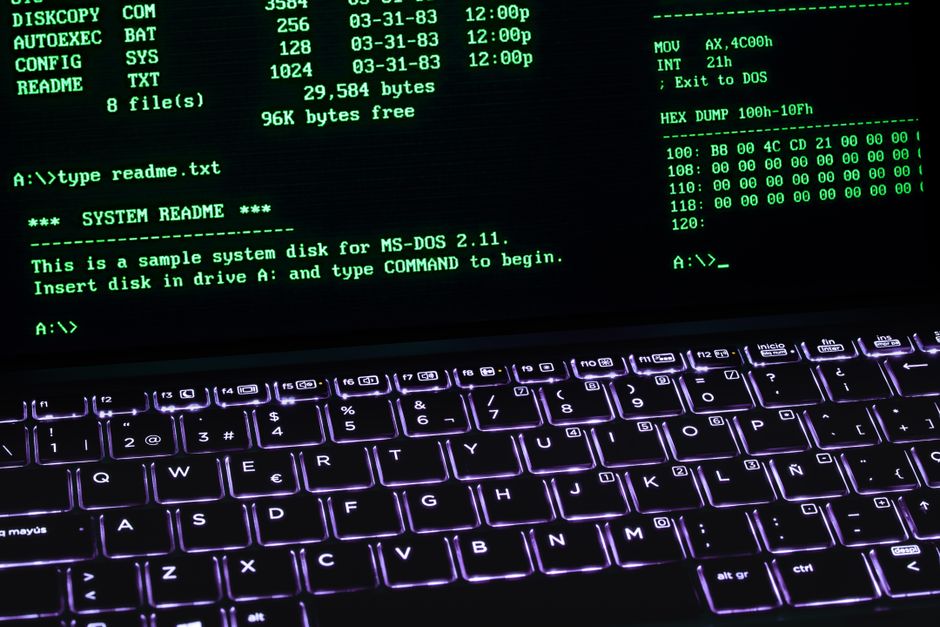
Photo by Rafael Minguet Delgado on Pexels
File systems determine how data is organized, stored, and retrieved on storage devices. The command line provides direct access to file system operations — essential for IT support, scripting, and automation.
Windows File Systems
NTFS (New Technology File System): The standard Windows file system since Windows NT. Features: file compression, encryption (EFS), quotas, journaling, and large volume support (up to 8 petabytes). Supports permissions (ACLs) and is required for Windows installation.
FAT32 (legacy): Simple, widely compatible. Max file size 4GB. Max volume 32GB (format). Used for USB flash drives when cross-platform compatibility is needed. Cannot store files larger than 4GB (like ISO images).
exFAT: Microsoft's modern cross-platform file system. No 4GB file size limit. No journaling (more prone to corruption). Best for external drives shared between Windows and macOS.
ReFS (Resilient File System): Microsoft's server-grade file system. Features integrity checking, automatic repair, and large volume support. Used in Windows Server for storage spaces. Not for boot drives.
macOS File Systems
APFS (Apple File System): Default since macOS 10.13 (2017). Features: snapshots, clones, encryption, space sharing (multiple volumes share one container), and TRIM support. Optimized for SSDs.
HFS+ (Mac OS Extended): Previous macOS file system. Still used on mechanical drives and for Time Machine backups to HDDs. Journaled variant (HFS+J) provides crash recovery.
Linux File Systems
ext4 (Fourth Extended File System): Default on most Linux distributions. Stable, fast, journaling, supports volumes up to 1 exabyte and files up to 16 terabytes. Mature and well-tested.
XFS: High-performance file system from SGI. Default on RHEL/CentOS. Excellent for large files and high I/O workloads. Does not shrink (only grow). Used in enterprise environments.
Btrfs (B-tree FS): Modern Linux file system. Features: snapshots, subvolumes, compression, deduplication, and RAID. Used by SUSE and Fedora. Still maturing but increasingly adopted.
ZFS: Enterprise-grade file system originally from Sun Microsystems. Features: data integrity verification, snapshots, clones, compression, deduplication, and built-in RAID. Used in TrueNAS and enterprise storage. Requires significant RAM (1GB per TB stored minimum).
Windows Command Line
Command Prompt (cmd.exe): Legacy Windows command line. Key commands:
• dir — list directory contents (equivalent to ls)
• cd \path — change directory
• copy source dest — copy files
• xcopy /e /h /c source dest — copy directories
• robocopy source dest /MIR — robust copy with mirroring
• del filename — delete files
• mkdir dirname — create directory
• type filename — display file contents (equivalent to cat)
• findstr — search text in files (equivalent to grep)
• tasklist — list running processes
• taskkill /pid 1234 /f — force kill process by ID
• ipconfig /all — network configuration
• ping hostname — test connectivity
• netstat -an — show open ports
• chkdsk /f /r — check and repair disk
• sfc /scannow — system file checker
• dism /online /cleanup-image /restorehealth — repair Windows image
PowerShell: Modern Windows command line and scripting language. More powerful than Command Prompt. Key commands:
• Get-ChildItem (gci, ls) — list files
• Get-Process — list processes
• Stop-Process -Name notepad — kill process
• Get-Service — list services
• Get-EventLog -LogName System -Newest 10 — recent system events
• Test-Connection hostname — ping test
• Invoke-WebRequest url — fetch web page
• Get-NetIPAddress — IP configuration
• Set-ExecutionPolicy RemoteSigned — allow scripts to run
Linux/macOS Command Line
Both macOS and Linux share Unix commands. Key commands for IT support:
• grep pattern file — search for text
• find /path -name '*.log' — find files by name
• tail -f /var/log/syslog — follow log file in real-time
• head -n 20 file — show first 20 lines
• wc -l file — count lines
• sort file | uniq -c — count unique lines
• tar -czf archive.tar.gz directory — create compressed archive
• tar -xzf archive.tar.gz — extract archive
• chmod 755 file — set permissions (rwxr-xr-x)
• chown user:group file — change ownership
• sudo command — run as root
• cat /etc/os-release — identify Linux distro
• du -sh /path — directory size
• df -h — disk usage
• ln -s target link — create symbolic link
Step-by-Step: File System Repair
Windows NTFS repair:
1. Open Command Prompt as Administrator
2. Run: chkdsk C: /f /r (fixes errors, recovers bad sectors)
3. If drive won't boot, run from recovery: chkdsk C: /f /r /x (forces dismount)
4. For system file corruption: sfc /scannow
5. If SFC fails: dism /online /cleanup-image /restorehealth, then sfc /scannow again
Linux ext4 repair:
1. Boot from live USB (cannot repair mounted filesystem)
2. Run: sudo fsck /dev/sda1
3. Press 'y' to fix errors
4. For thorough check: sudo fsck -f /dev/sda1 (forces check even if clean)
5. Reboot normally
Free Tools
WinDirStat: Visual disk space analyzer for Windows. Shows what's consuming space with color-coded treemap.
Baobab (Disk Usage Analyzer): Linux equivalent. Visual disk usage.
TestDisk: Open-source data recovery tool. Recovers deleted partitions and files. Works on all platforms.
Photorec: File recovery tool (companion to TestDisk). Recovers files by signature regardless of file system.
Key Takeaways
• NTFS for Windows, APFS for macOS, ext4 for Linux — match the OS to the file system
• exFAT is the best choice for external drives shared between Windows and macOS
• PowerShell is more powerful than Command Prompt — learn it for IT support
• chkdsk and sfc are the primary Windows repair tools
• fsck is the Linux/macOS file system repair tool — must run on unmounted drives
Common Questions
Q: What file system should I use for a USB drive?
A: exFAT for cross-platform use. NTFS if Windows-only. FAT32 if you need legacy compatibility but beware the 4GB file limit.
Q: How do I access Linux files from Windows?
A: WSL2 provides direct access at \\wsl$\Ubuntu\. Or use Samba (SMB) to share Linux directories over the network.
File Systems and Command Line
Photo by Rafael Minguet Delgado on Pexels
File systems determine how data is organized, stored, and retrieved on storage devices. The command line provides direct access to file system operations — essential for IT support, scripting, and automation.
Windows File Systems
NTFS (New Technology File System): The standard Windows file system since Windows NT. Features: file compression, encryption (EFS), quotas, journaling, and large volume support (up to 8 petabytes). Supports permissions (ACLs) and is required for Windows installation.
FAT32 (legacy): Simple, widely compatible. Max file size 4GB. Max volume 32GB (format). Used for USB flash drives when cross-platform compatibility is needed. Cannot store files larger than 4GB (like ISO images).
exFAT: Microsoft's modern cross-platform file system. No 4GB file size limit. No journaling (more prone to corruption). Best for external drives shared between Windows and macOS.
ReFS (Resilient File System): Microsoft's server-grade file system. Features integrity checking, automatic repair, and large volume support. Used in Windows Server for storage spaces. Not for boot drives.
macOS File Systems
APFS (Apple File System): Default since macOS 10.13 (2017). Features: snapshots, clones, encryption, space sharing (multiple volumes share one container), and TRIM support. Optimized for SSDs.
HFS+ (Mac OS Extended): Previous macOS file system. Still used on mechanical drives and for Time Machine backups to HDDs. Journaled variant (HFS+J) provides crash recovery.
Linux File Systems
ext4 (Fourth Extended File System): Default on most Linux distributions. Stable, fast, journaling, supports volumes up to 1 exabyte and files up to 16 terabytes. Mature and well-tested.
XFS: High-performance file system from SGI. Default on RHEL/CentOS. Excellent for large files and high I/O workloads. Does not shrink (only grow). Used in enterprise environments.
Btrfs (B-tree FS): Modern Linux file system. Features: snapshots, subvolumes, compression, deduplication, and RAID. Used by SUSE and Fedora. Still maturing but increasingly adopted.
ZFS: Enterprise-grade file system originally from Sun Microsystems. Features: data integrity verification, snapshots, clones, compression, deduplication, and built-in RAID. Used in TrueNAS and enterprise storage. Requires significant RAM (1GB per TB stored minimum).
Windows Command Line
Command Prompt (cmd.exe): Legacy Windows command line. Key commands:
• dir — list directory contents (equivalent to ls)
• cd \path — change directory
• copy source dest — copy files
• xcopy /e /h /c source dest — copy directories
• robocopy source dest /MIR — robust copy with mirroring
• del filename — delete files
• mkdir dirname — create directory
• type filename — display file contents (equivalent to cat)
• findstr — search text in files (equivalent to grep)
• tasklist — list running processes
• taskkill /pid 1234 /f — force kill process by ID
• ipconfig /all — network configuration
• ping hostname — test connectivity
• netstat -an — show open ports
• chkdsk /f /r — check and repair disk
• sfc /scannow — system file checker
• dism /online /cleanup-image /restorehealth — repair Windows image
PowerShell: Modern Windows command line and scripting language. More powerful than Command Prompt. Key commands:
• Get-ChildItem (gci, ls) — list files
• Get-Process — list processes
• Stop-Process -Name notepad — kill process
• Get-Service — list services
• Get-EventLog -LogName System -Newest 10 — recent system events
• Test-Connection hostname — ping test
• Invoke-WebRequest url — fetch web page
• Get-NetIPAddress — IP configuration
• Set-ExecutionPolicy RemoteSigned — allow scripts to run
Linux/macOS Command Line
Both macOS and Linux share Unix commands. Key commands for IT support:
• grep pattern file — search for text
• find /path -name '*.log' — find files by name
• tail -f /var/log/syslog — follow log file in real-time
• head -n 20 file — show first 20 lines
• wc -l file — count lines
• sort file | uniq -c — count unique lines
• tar -czf archive.tar.gz directory — create compressed archive
• tar -xzf archive.tar.gz — extract archive
• chmod 755 file — set permissions (rwxr-xr-x)
• chown user:group file — change ownership
• sudo command — run as root
• cat /etc/os-release — identify Linux distro
• du -sh /path — directory size
• df -h — disk usage
• ln -s target link — create symbolic link
Step-by-Step: File System Repair
Windows NTFS repair:
1. Open Command Prompt as Administrator
2. Run: chkdsk C: /f /r (fixes errors, recovers bad sectors)
3. If drive won't boot, run from recovery: chkdsk C: /f /r /x (forces dismount)
4. For system file corruption: sfc /scannow
5. If SFC fails: dism /online /cleanup-image /restorehealth, then sfc /scannow again
Linux ext4 repair:
1. Boot from live USB (cannot repair mounted filesystem)
2. Run: sudo fsck /dev/sda1
3. Press 'y' to fix errors
4. For thorough check: sudo fsck -f /dev/sda1 (forces check even if clean)
5. Reboot normally
Free Tools
WinDirStat: Visual disk space analyzer for Windows. Shows what's consuming space with color-coded treemap.
Baobab (Disk Usage Analyzer): Linux equivalent. Visual disk usage.
TestDisk: Open-source data recovery tool. Recovers deleted partitions and files. Works on all platforms.
Photorec: File recovery tool (companion to TestDisk). Recovers files by signature regardless of file system.
Key Takeaways
• NTFS for Windows, APFS for macOS, ext4 for Linux — match the OS to the file system
• exFAT is the best choice for external drives shared between Windows and macOS
• PowerShell is more powerful than Command Prompt — learn it for IT support
• chkdsk and sfc are the primary Windows repair tools
• fsck is the Linux/macOS file system repair tool — must run on unmounted drives
Common Questions
Q: What file system should I use for a USB drive?
A: exFAT for cross-platform use. NTFS if Windows-only. FAT32 if you need legacy compatibility but beware the 4GB file limit.
Q: How do I access Linux files from Windows?
A: WSL2 provides direct access at \\wsl$\Ubuntu\. Or use Samba (SMB) to share Linux directories over the network.
There are no comments for now.
to be the first to leave a comment.